
Help & Support
Find Answers and Guides for Using PlagiaChecker
Get help with account setup, plagiarism checks, reports, scan history, API access, and other PlagiaChecker features. Follow step-by-step guides to understand how the platform works and review your content originality reports.
Explore PlagiaChecker Documentation
Find detailed guides that explain how to create your account, check plagiarism, understand reports, manage previous scans, and use available platform features.
1. Sign Up Process
Creating a PlagiaChecker account is simple. Follow these steps to register, verify your email, and activate your account.
Visit Registration Page
Open: https://app.plagiachecker.com/
Choose Your Preferred Sign-Up Method
Two options are available:
- Standard Registration: Create an account using your name, email address, and password.
- Google Sign-Up: Quickly register using your Google account without creating another password.
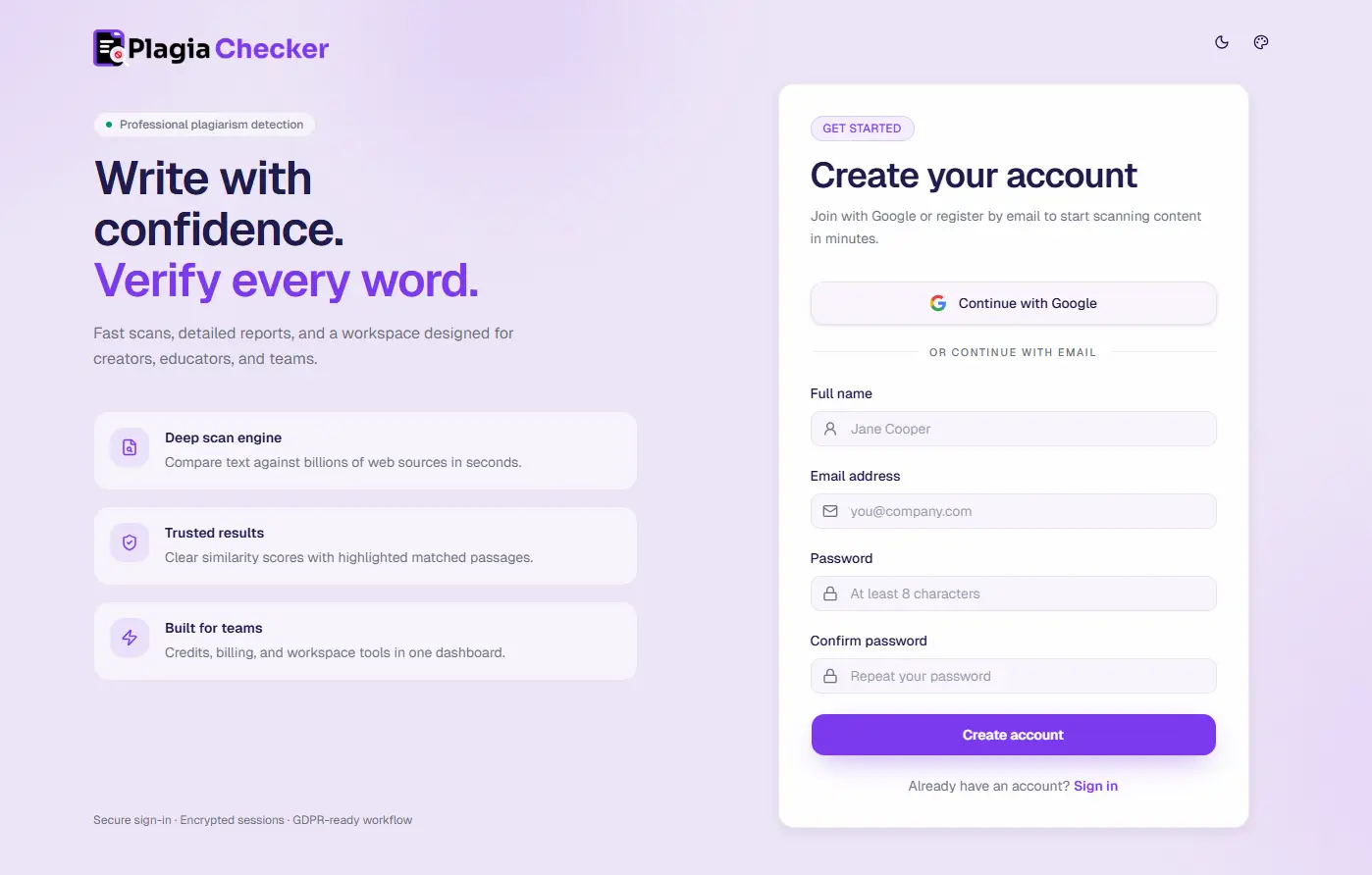
Enter Your Details
- First & Last Name: Used for your account profile.
- Email Address: This will be your login ID.
- Password: Create a secure password for your PlagiaChecker account.
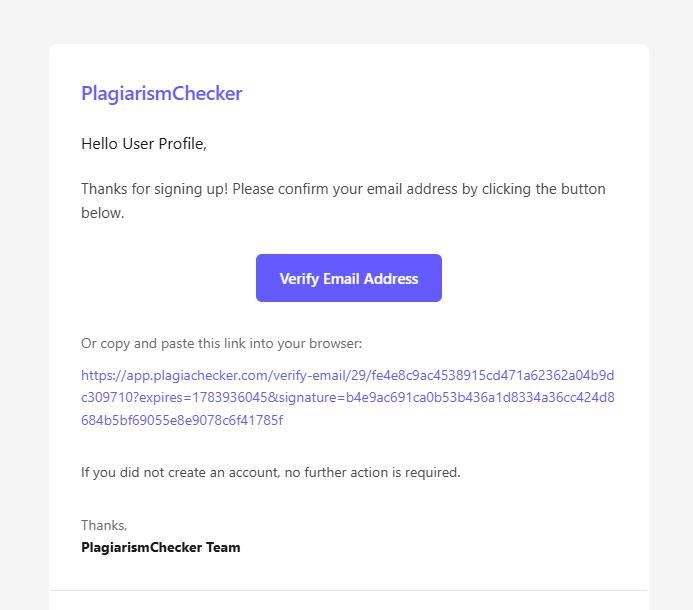
Verify Your Email
After registration, an automatic verification email will be sent to your email address.
- Check your inbox.
- Open the PlagiaChecker verification email.
- Click the verification link or paste the URL into your browser to complete verification.
2. How To Check Plagiarism Using PlagiaChecker
PlagiaChecker compares submitted content with available sources to identify matching passages and generate an originality report.
Steps
- Login to your PlagiaChecker account.
- Open "Check Plagiarism" from the dashboard navigation.
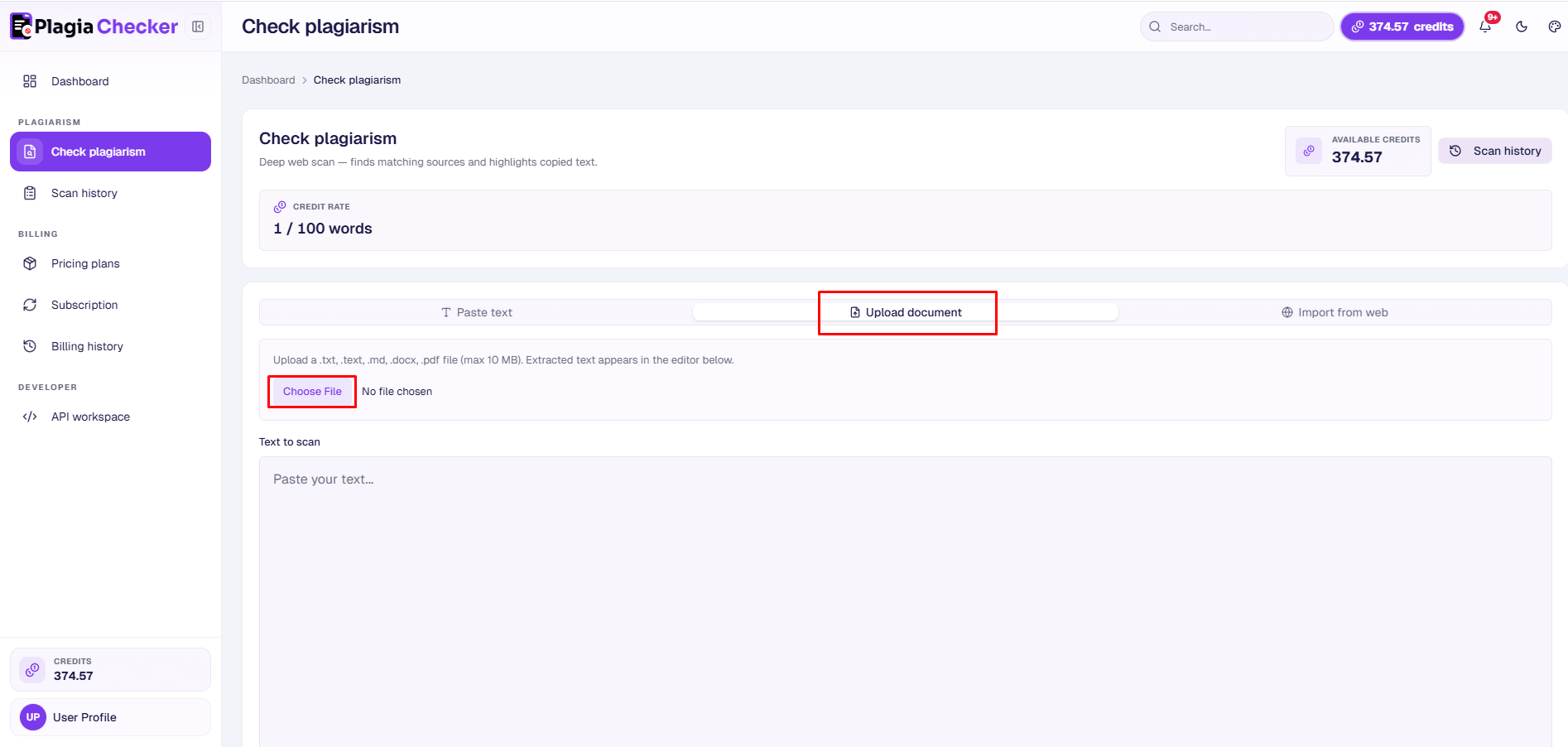
- Add your content using one of the options below.
Paste Text
Copy and paste your content directly into the editor.
Useful for:
- Blog articles
- Essays
- Website content
- Social media posts
- Short documents

Upload Document
Upload supported documents for scanning.
Supported formats:
- .docx
- .doc
- .txt
- .md
Import Website URL
Scan publicly accessible webpage content by entering a URL.
Useful for:
- Published articles
- Existing webpages
- Content audits

3. Understanding Your Report
After scanning content, PlagiaChecker generates a report containing similarity information, highlighted passages, and possible source details.
Similarity Score
The similarity percentage shows how much submitted content matches external sources.
Review results and confirm content originality.
Review highlighted passages and sources.
Carefully review matching content.
Highlighted Passages
Matched text appears directly in your document. Review highlighted sections and compare them with the connected source information.

Source List
The source list shows possible matching pages and URLs connected with detected similarities, allowing you to verify the context of the match.
4. Scan History
Scan History allows users to view previous plagiarism checks and access earlier reports without repeating the same scan.
Accessing Previous Scans
- Login to your account.
- Open Scan History.
- Select any completed scan.
- Review report details.
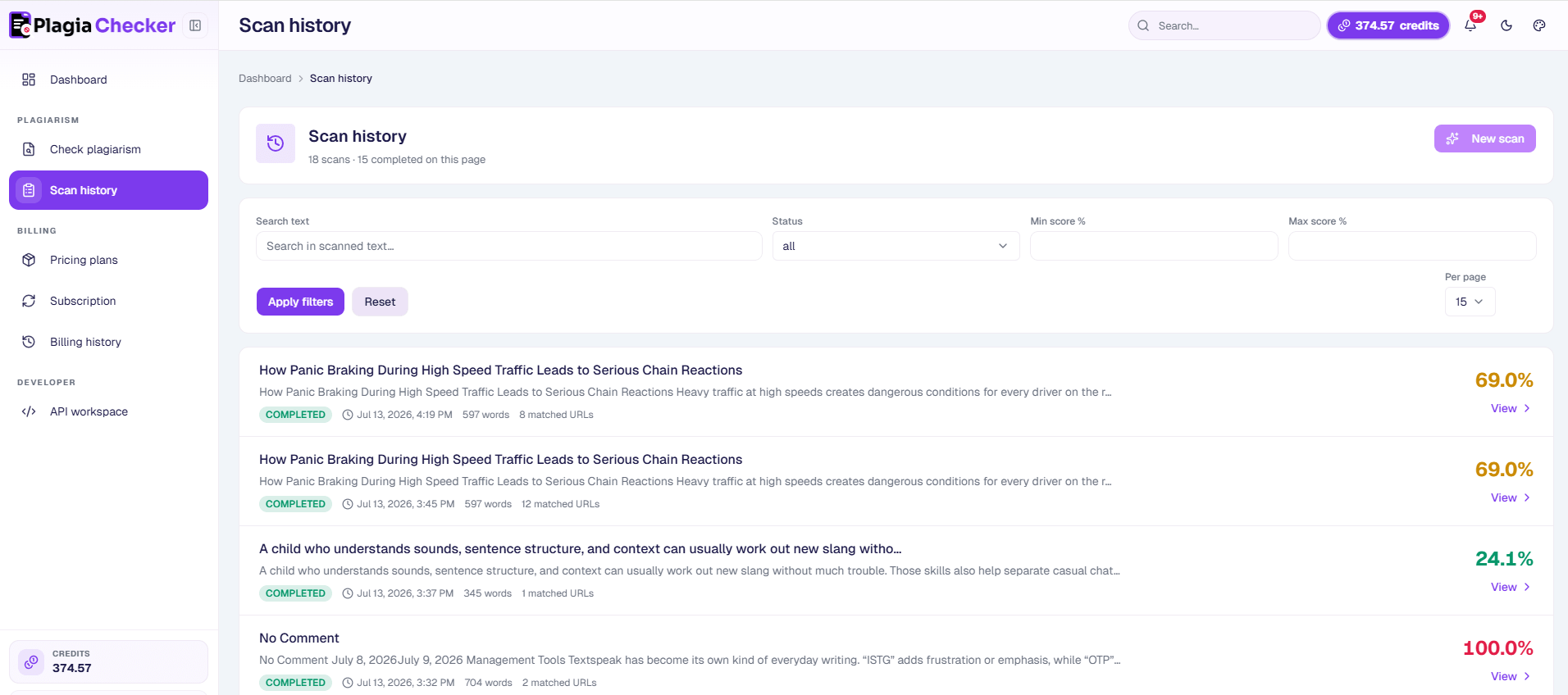
Search and Filtering
Users can find reports faster using available filters.
- Search by scanned text: Type any keyword from your document to find the relevant scan.
- Filter by status: View Completed, In Progress, or Failed scans separately.
- Filter by similarity range: Set a minimum and maximum percentage to surface only the scans that fall within that range.
- Adjust results per page: Display 15, 30, or 50 scans at once.
5. API Workspace
The PlagiaChecker API allows developers and businesses to integrate plagiarism checking features into applications, websites, and workflows.
How To Access API
- Login to your PlagiaChecker account.
- Open API Workspace.
- Generate or access your API token.
- Connect your application using API documentation.
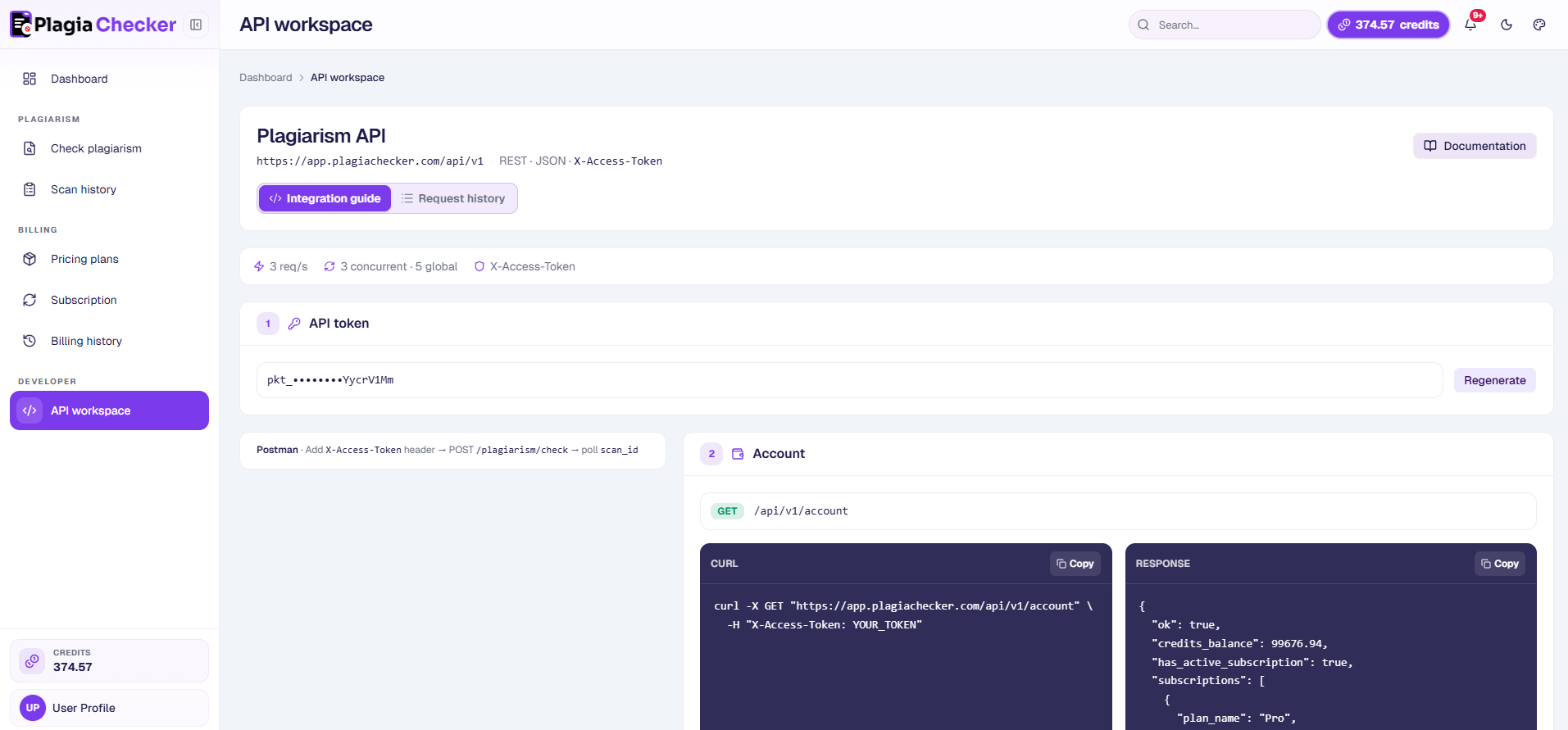
What Can I Do With API?
- Submit content for plagiarism checks
- Retrieve plagiarism results
- Automate content verification
- Integrate originality checking into existing platforms
6. Contact Support
Need more help? Our support team can assist with questions, issues, and feedback.
Support areas:
- Account issues
- Billing questions
- Technical problems
- API integration support
- Feature questions
Frequently Asked Questions
Answers to common questions about PlagiaChecker features, reports, and account access.
PlagiaChecker is an online plagiarism checker that helps users review similarity scores, highlighted matches, possible source links, and content originality.
Users can check pasted text, supported documents, and publicly accessible webpage content.
Supported formats include DOCX, PDF, DOC, TXT, and MD.
Pages behind login systems, paywalls, or authentication restrictions may not be accessible through URL scanning.
Processing time depends on content length and scan requirements.




Need Help Checking Your Content?
Start a plagiarism check, review matching passages, and understand your content originality report.